Why iOS Features Can Drain Your iPhone’s Battery
Those helpful widgets showing weather updates, calendar appointments, and sports scores look convenient, but they’re secretly battery vampires. Each widget forces its associated app to continuously run in the background, constantly fetching new data to keep the information current. This non-stop background activity creates a substantial drain on your battery throughout the day. While individual widgets might have minimal impact, having multiple widgets can collectively take a significant toll on your battery life.
Removing Widgets from Your Lock Screen
To remove widgets from your lock screen, press and hold on your lock screen until the customization view appears. Tap Customize and select the Lock Screen option. Next, tap on the widget box, select the widget and press the minus (−) button to remove it. This simple adjustment can significantly reduce your battery consumption and extend your iPhone’s runtime.
Reducing Motion Effects
Your iPhone uses animations when opening apps, activating Siri, and switching between screens. These visual effects require additional processing power and drain your battery throughout the day. By simplifying these animations, you can reduce power consumption and extend battery life. To reduce motion effects on your iPhone, start by opening the Settings app. Tap on Accessibility, then select Motion. Then simply toggle on the Reduce Motion option.
Disabling Keyboard Haptic Feedback
Introduced in iOS 16, keyboard haptic feedback provides a subtle vibration each time you press a key. This tactile response makes typing feel more satisfying, but according to Apple Support’s small disclaimer, it might affect the battery life of your iPhone. Each tiny vibration requires power from the Taptic Engine, and considering how frequently we type on our phones, these small power draws add up quickly throughout the day. To disable keyboard haptic feedback, open the Settings app on your iPhone. Tap on Sounds & Haptics, select Keyboard Feedback, and toggle off the Haptic option.
Monitoring Your Results
After disabling these features, you should notice improvements in your day-to-day battery performance. To verify the impact, check your Battery Health menu by going to Settings, Battery, and Battery Health & Charging. This screen shows your battery’s maximum capacity (80% or higher is considered good) and cycle count. While these settings won’t restore an aging battery to its original capacity, they can significantly extend the runtime you get from each charge.
Additional Tips and Resources
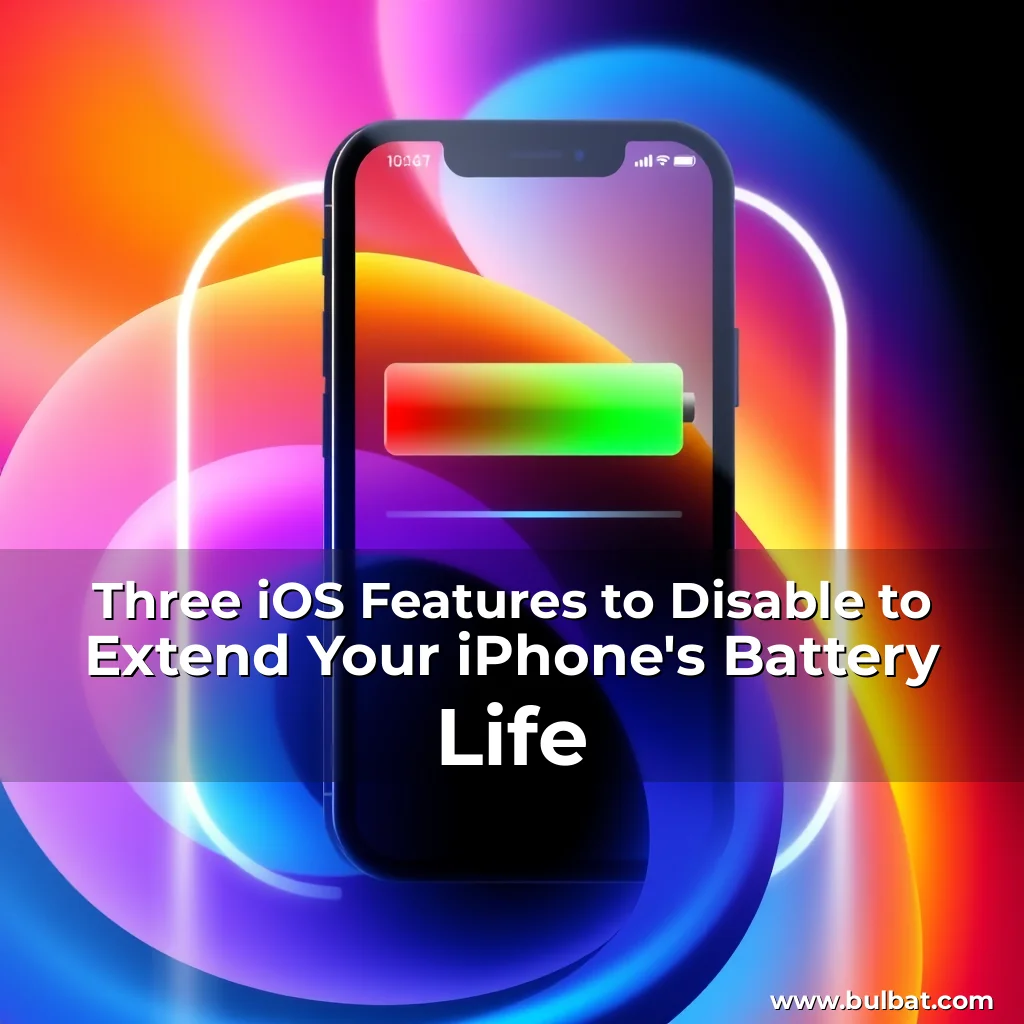
By making these simple adjustments, you can maximize your iPhone’s battery life without sacrificing the core functionality that makes your device useful. Now that you’ve learned how to disable the three iOS features that drain your iPhone battery, why not take a look at our other iPhone guides?
- Check out how to clear your Chrome cache on iPhone, for no more loading errors.
- We also have how to instantly save space on your iPhone and 7 underrated iPhone features you’re probably not using.
“By disabling these features, you can extend your iPhone’s battery life and reduce how often you need to charge your device.” — Tom’s Guide
Takeaway
By making these simple adjustments, you can maximize your iPhone’s battery life without sacrificing the core functionality that makes your device useful. Disable widgets from your lock screen, reduce motion effects, and disable keyboard haptic feedback to extend your iPhone’s battery life. Monitor your results and enjoy a more efficient battery performance.

news is a contributor at BulBat. We are committed to providing well-researched, accurate, and valuable content to our readers.